Integrating Google Login with Drupal 10
Why Google Login in Drupal?
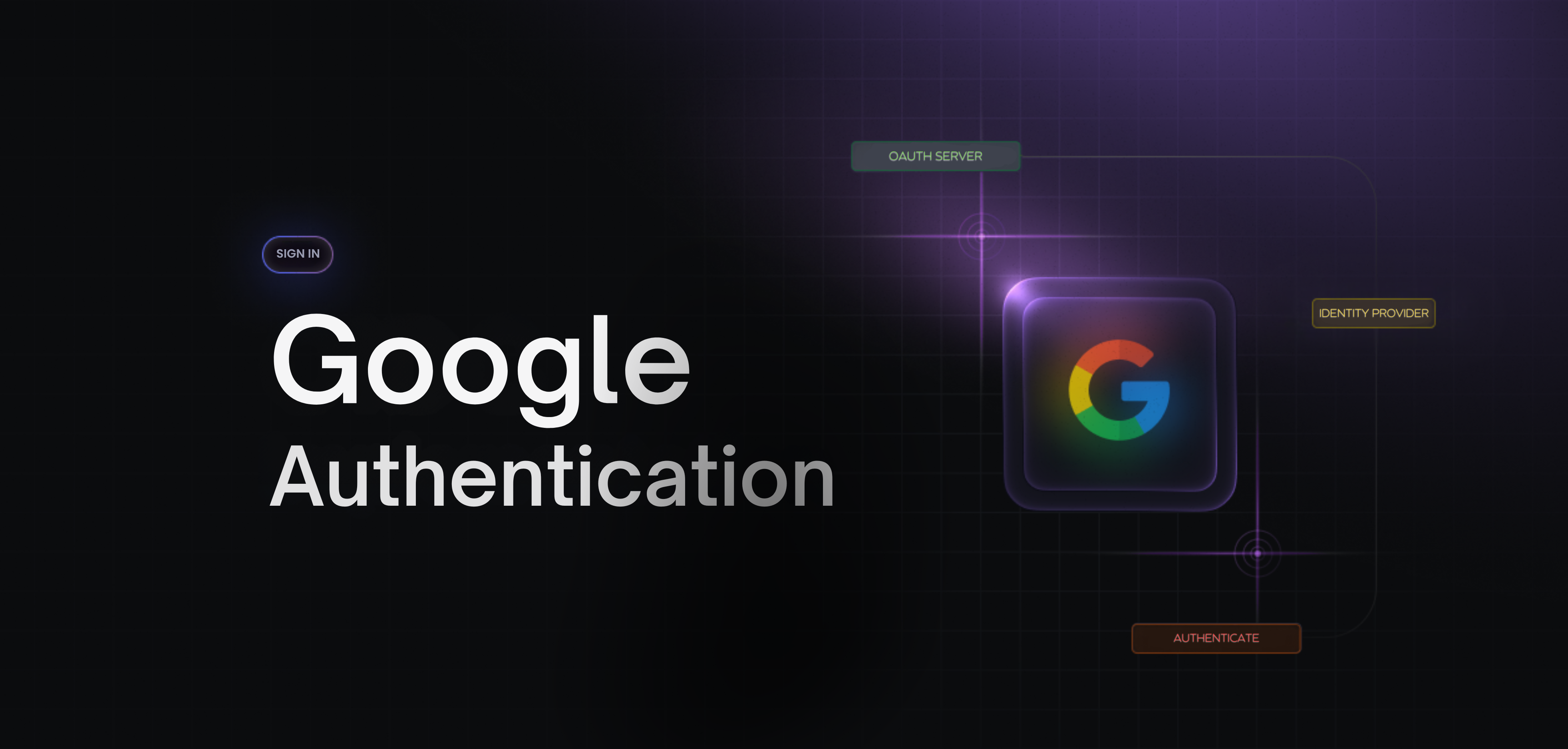
Integrating Google Sign-In allows users to log in using their existing Google account, which results in:
Faster registration & login
Reduced password fatigue
Better security (OAuth 2.0)
Higher conversion rates
Drupal 10 supports this via contributed OAuth modules.
Approach 1: Google Login Using Social Auth Google (Recommended)
Why choose Social Auth Google?
Built on Drupal Social Auth framework
Clean Drupal Entity-based configuration
Fully extensible (custom fields, roles, workflows)
Best for enterprise & custom Drupal projects
Step 1: Create Google OAuth Credentials
Go to Google Cloud Console
Create a New Project
Navigate to:
APIs & Services -> CredentialsClick Create Credentials -> OAuth Client ID
Application type: Web application
Authorized redirect URI:
https://yourdomain.com/user/login/google/callbackSave Client ID and Client Secret
Step 2: Install Required Drupal Modules
Install using Composer:
composer require drupal/social_auth drupal/social_auth_google
Enable modules:
Step 4: Enable User Registration
Ensure Drupal allows new users:
Admin → Configuration → People → Account settings
Set:
Who can register accounts? → Visitors
Step 5: Place Google Login Button
Social Auth does not auto-place buttons.
Option A: Use Block (Recommended)
Go to:
Admin → Structure → Block layout
- Place Social Auth Login block
- Assign region (Sidebar / Content)
- Save
Option B: Twig Template (Custom Theme)
<a href="/user/login/google" class="google-login-btn">
  Login with Google
</a>
Step 6: Test Login Flow
Open
/user/loginClick Login with Google
Authenticate via Google
User is:
Auto-created in Drupal
Logged in immediately
Email mapped automatically
Step 7: Map Roles & User Data (Optional)
Install helper module:
Allows:
Assign Drupal roles to Google users
Map Google profile fields → Drupal user fields
Approach 2: Google Login Using OAuth Login (MiniOrange)
When to choose OAuth Login?
UI-driven setup
No custom coding
Suitable for quick setups & POCs
Step 1: Install OAuth Login Module
Admin → Configuration → OAuth Client
Steps:
Select Google as provider
Enter:
Client ID
Client Secret
Save & Test connection
Step 3: Attribute & Role Mapping
Configure:
Email - Drupal Email
Name - Username
Default role - Authenticated User / Custom role
Step 4: Display Login Button
Module provides:
Shortcode
Block
Auto-login button on
/user/login