JIRA Filters and JQL
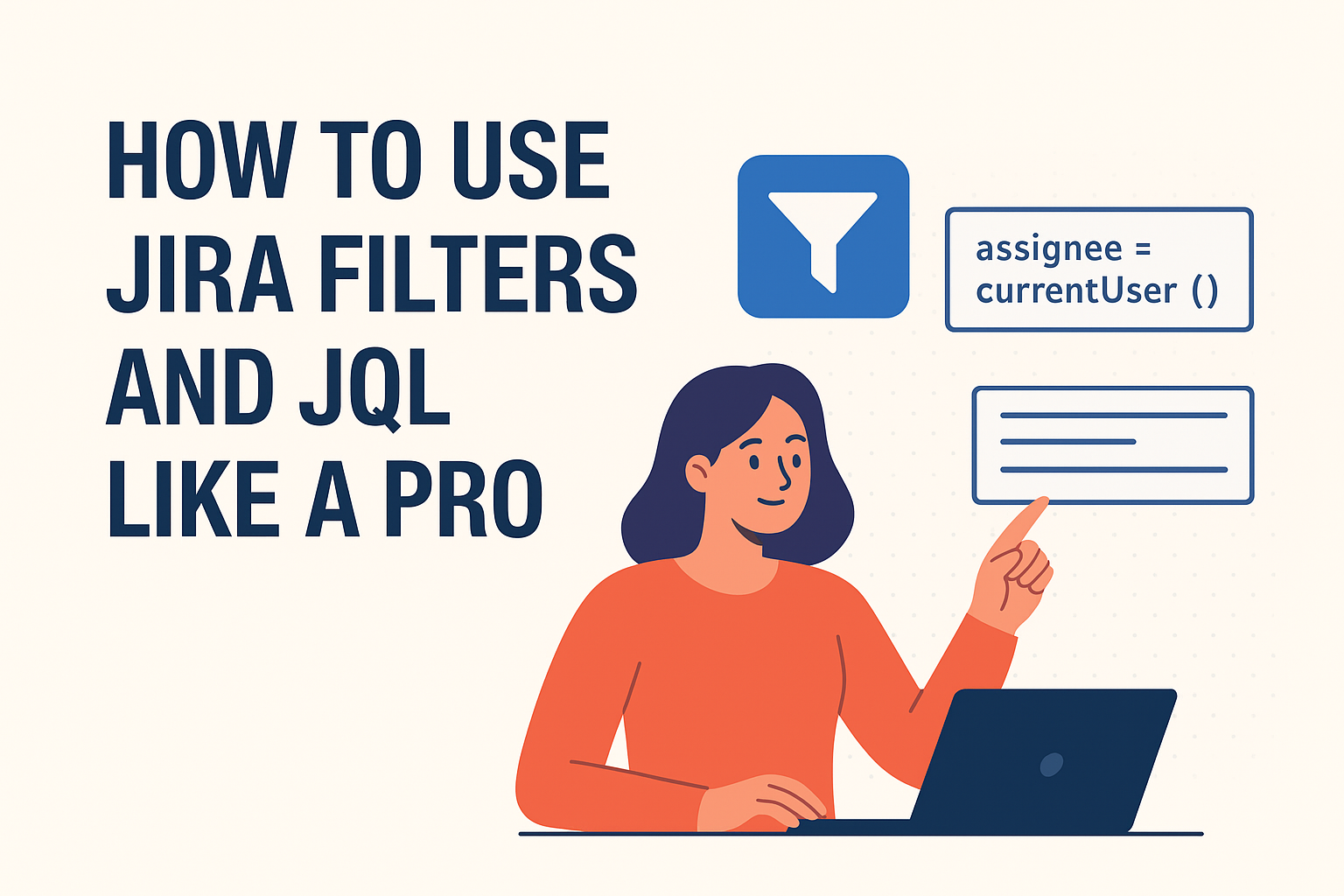
When you're using JIRA, one of the standout features that can really enhance your productivity and simplify project tracking is the combination of JIRA Filters and JQL (JIRA Query Language). No matter if you're a project manager, developer, or tester, getting a handle on these tools allows you to quickly locate issues, create views that you can reuse, and manage your projects with great accuracy.
Getting Started with JIRA Filters
Run a Search
Head over to the Issues tab and set your search criteria using either the search bar or the dropdown menus.
Save the Search as a Filter
Once you’ve got your results, just click on Save as Filter, give it a catchy name, and you’re all set!
Share the Filter (Optional)
In the “Manage Filters” section, you can share your filters with your team, group, or organization, making sure everyone has access to the same information.
Introduction to JQL (JIRA Query Language)
While the basic search in JIRA is straightforward and easy to use, JQL elevates your searching game. It lets you create complex queries and filter issues based on various conditions.
A simple JQL query looks like this:
assignee = currentUser() AND status = "In Progress" ORDER BY priority DESCThis query displays all issues assigned to the currently logged-in user that are marked as "In Progress," sorted by priority from highest to lowest.
Common JQL Examples
Here are some useful JQL queries you can try right away:
Issues assigned to me:
assignee = currentUser()All open bugs in a project:
project = "ABC" AND issuetype = Bug AND status != DoneHigh-priority issues created last 7 days:
priority = High AND created >= -7dUnassigned tasks in the backlog:
project = "XYZ" AND assignee IS EMPTY AND status = "To Do"Pro Tips for Using JQL
Use Functions
Functions likecurrentUser(),startOfDay(), andendOfWeek()make queries dynamic. For example:
due <= endOfWeek() AND assignee = currentUser()Order by for Clarity
Always useORDER BYto sort results by priority, due date, or created date for better readability.Combine with Dashboards
Add saved JQL filters as gadgets to your dashboard for real-time tracking.Use Parent/Child Relationships
For stories and subtasks:
parent = PROJ-123Save Time with Favorites
Star your most-used filters so they’re always a click away.
When to Use Filters vs. JQL
Filters are fantastic for those regular tasks, dashboards, and reports you rely on.
JQL shines when you need to perform advanced, flexible searches on the spot.
Together, they create a powerful duo—filters enhance JQL's reusability, while JQL adds a layer of intelligence to filters.
JIRA Filters and JQL might seem a bit daunting at first, but trust me, once you dive in and start playing around with them, you'll quickly realize how much time and effort they can save you. By mastering just a few JQL commands and saving them as filters, you'll elevate your JIRA game and work like a true professional.
Begin with straightforward queries, keep your most helpful filters handy, and slowly introduce more complexity as you gain confidence. Before you know it, you'll be managing projects more efficiently and accurately than ever!